Pokemon Arena 2D – Play Online Free
Build a team of three and battle the computer in a free real-time browser arena. This independent web game is separate from Big Kid Nation's project and Omniscye's Empress client.
How to Play Pokemon Arena 2D Online
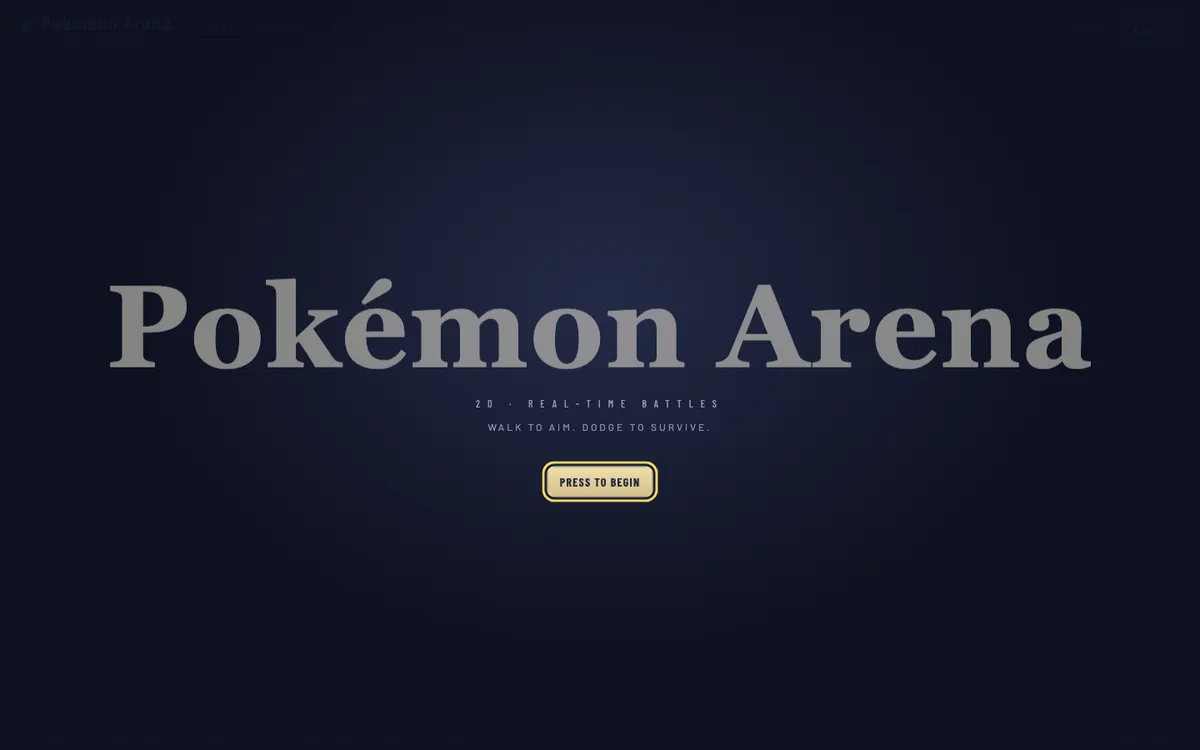
Select Play Now above to load the arena, then choose PRESS TO BEGIN inside the game. You can start a computer battle, edit your lineup or open the story challenges from that main menu. You do not need an account, a Windows installer or an Android APK for this browser experience.
Start a Battle in Your Browser
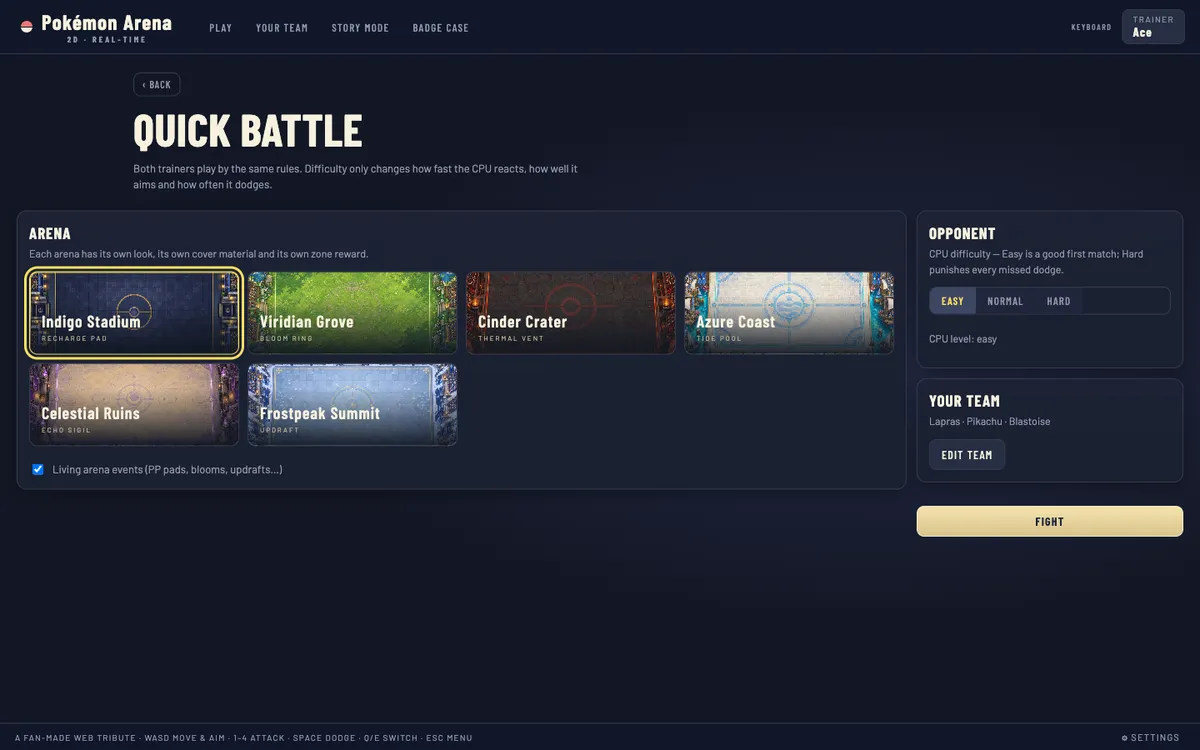
For a first match, choose QUICK BATTLE. Its setup screen separates the battleground from your opponent settings: select an arena, choose EASY, NORMAL or HARD, check the displayed team and press Fight. EASY is a useful starting point while learning how movement, facing and attack timing fit together. The difficulty description concerns how the computer reacts, aims and dodges; it is not a promise of online matchmaking.
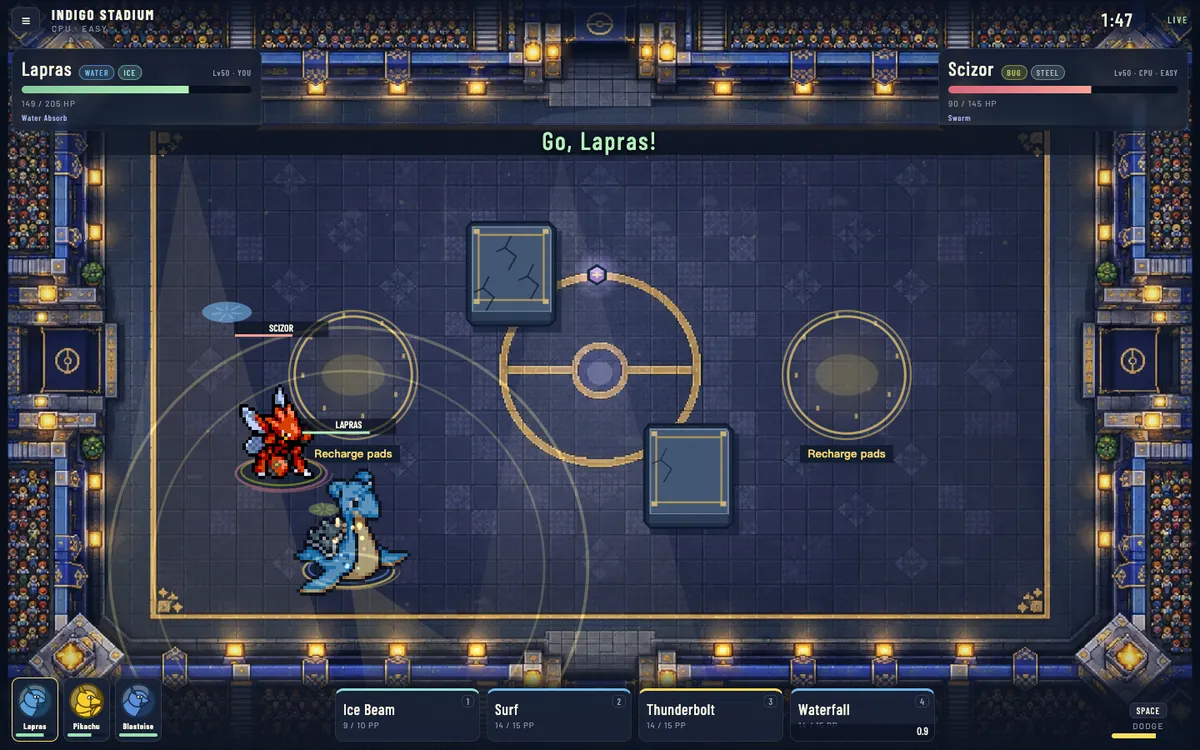
Wait for the opening countdown before attacking. The battle HUD shows your active character, both health bars, the clock, team slots and four move cards. If keyboard input appears to do nothing, click inside the game first. Open full page launches the same local browser arena in a separate tab, which can provide more room than an embedded panel.
Pick Your Team Before Fighting
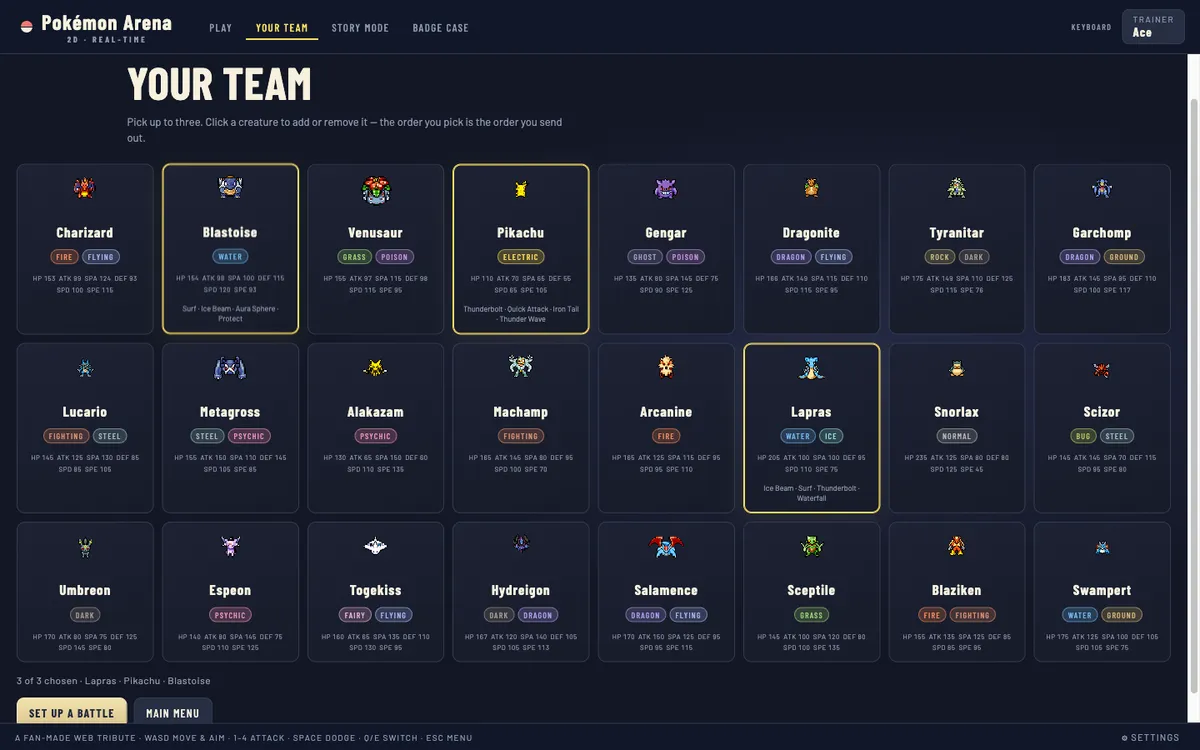
Open YOUR TEAM from the top game menu or the main menu card. Select a character to add it, or select an already chosen character to remove it. The editor keeps at least one member and allows up to three. When all slots are occupied, remove someone before adding another choice; repeated taps on a full team do not create extra slots.
Selection order matters: the first member is your starting fighter. The cards show types, stats and four moves, so compare the available attacks instead of choosing only by appearance. Set up a battle takes your selected lineup into Quick Battle. Team changes are stored in this browser, so a different device, private session or cleared site data may start with a different save.
Pokemon Arena 2D Game Modes
The local game's PLAY navigation returns to its main menu. QUICK BATTLE and STORY MODE lead to fights against the computer; YOUR TEAM edits the saved lineup, and BADGE CASE displays local progress. These menus belong to this browser build. They are not evidence that Big Kid Nation's announced game has released, or that Empress client multiplayer is available here.
Quick Battles and Team Setup
Quick Battle lets you prepare a match without advancing story progress. The setup screen offers three CPU difficulties, six named arena choices and a Living arena events checkbox. You can leave setup to edit your team and return before pressing Fight. Once a battle begins, concentrate on one move and the dodge control first, then add switching when you can read the HUD comfortably.
The pause menu provides Resume, Restart and Quit to menu. Restart begins another match; it is not a rewind or a way to keep a partially completed fight. Use Quit to menu before changing modes. Reloading the browser also ends the active match, even though previously saved team preferences can remain.
Story Mode and Badge Case
The Story Mode screen lists eight leader challenges, beginning with Brock. Choose Challenge on a leader card to enter that encounter; the card identifies the opposing team and badge. The first encounter is playable, and the code awards its badge after a win and confirmation of the result. This review did not complete every challenge, so an eight-entry menu should not be read as a hands-on completion claim for the entire campaign.
BADGE CASE shows which badges this browser has earned and which leader each missing badge belongs to. It is a progress display, not a separate combat mode. The screen explicitly describes local storage: there is no account-based badge sync. Before clearing browser data or moving to another device, assume that those local records will not follow you automatically.
| Menu | What you can do | Status |
|---|---|---|
| Quick Battle | Choose a CPU difficulty and arena, then Fight | Playable; setup and battles checked |
| Your Team | Select one to three characters and save their order | Selection checked |
| Story Mode | Open listed leader challenges and work toward badges | First battle checked; full completion not claimed |
| Badge Case | View locally earned and missing badges | Progress screen checked |
Pokemon Arena 2D Controls
Movement and aiming are linked in this browser build. Turn toward an opponent before using an attack; do not assume that an Empress mouse-aiming tutorial applies here. Aim assist is available in this game's Settings, where its description explains the difference between assisted shots and firing directly along your movement direction.
Desktop Keyboard Controls
Use WASD or the arrow keys to move. The move cards are numbered 1–4, and pressing the corresponding number attempts that move. A successful use consumes PP, while the shaded card indicates cooldown. An input during another move's wind-up, recovery or an unavailable state may not immediately produce another attack. Read the HUD rather than treating repeated key presses as a guarantee that every move fires.
Space triggers a dodge when it is ready. Q and E request a switch among surviving teammates; the active name and move cards change when switching succeeds. Switching is not a replacement for watching health: a fainted member cannot be brought back simply by selecting its slot. Esc opens the battle menu, and Esc again resumes. The menu's Restart and Quit options affect the current session, so use them deliberately.
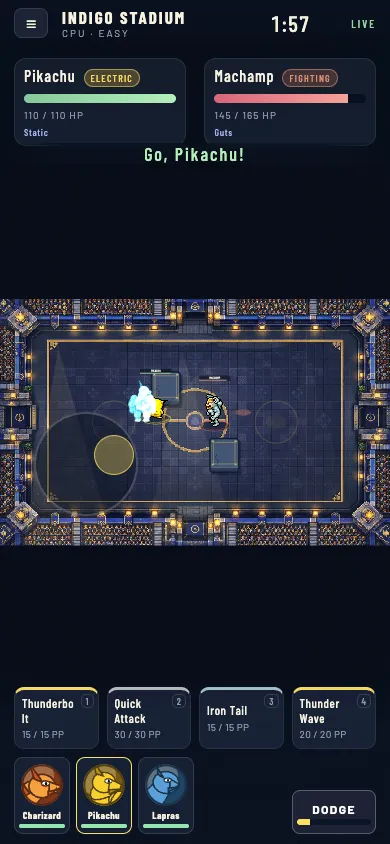
Mobile Touch Controls
During a phone battle, drag on the left side of the battlefield to bring up the movement stick. Tap one of the four move cards to attack, tap a team slot to request a switch, and tap DODGE when its meter is ready. The top-left menu button pauses the fight. These are the touch controls of this website's arena, not the hold-and-drag aiming system documented for the separate Empress client.
Keep your movement finger on the battlefield rather than dragging a page paragraph. Portrait and landscape provide different amounts of space; try landscape or Open full page if menus feel cramped. An on-screen button responding does not establish compatibility with every phone. The interface and touch gestures were checked in phone-sized Chromium sessions, while Safari and physical-device differences still merit testing.
| Action | Key or input | Where it works |
|---|---|---|
| Move and face | WASD or arrow keys | Active battle with game focus |
| Use move slots 1–4 | 1, 2, 3, 4 or click a move card | When the move is available |
| Dodge | Space or DODGE button | When the dodge meter is ready |
| Switch teammate | Q / E or a team slot | Surviving team members |
| Pause / resume | Esc or top-left menu | Active battle |
Arenas, Team Building and Battle Features
The team editor currently lists 24 character entries. They include Charizard, Pikachu, Blastoise, Lapras, Gengar, Lucario and Snorlax, with different types, stat displays and move sets. A visible roster is useful for planning, but it does not mean this independent build includes the much larger roster, versions or save files of another game with a similar name.
Teams and Character Choices
Build around the attacks you can actually use. A team with different attack types gives you alternatives when one member's attacks meet resistance; a second healthy member also lets you change the fight without immediately losing the whole lineup. Start by reading each selected card's moves and comparing that information with the active move bar after a switch.
The battlefield uses health, PP and cooldowns at the same time. Having a move ready on cooldown is not enough if its PP has run out. Likewise, a high-damage attack can miss if you face away or commit while the opponent changes position. Practice short movement adjustments and a single attack before trying to combine all four move slots. There is no need to invent a tier list to learn those basics.
Battle Arenas and Stages
Quick Battle lists Indigo Stadium, Viridian Grove, Cinder Crater, Azure Coast, Celestial Ruins and Frostpeak Summit. Each choice shows its own arena art and a named event, such as a Recharge Pad, Bloom Ring, Thermal Vent, Tide Pool or Updraft. Select the card before Fight rather than expecting a location name in an image folder to change the match.
Living arena events can be switched on or off during setup. Cover and event zones introduce positioning decisions beyond pressing an attack whenever it is ready. Watch the battlefield indicators and leave yourself a route around obstacles. If you want to compare teams or learn a new move without another variable, keep the same arena and difficulty for several attempts before changing the setup.
Pokemon Arena 2D on Mobile
You can enter this browser arena from the same page on a phone without installing an APK. Load the game before judging a blank frame, then use its own menu and touch controls. The expanded mobile player gives the battlefield room after launch; Open full page is another way to use the available screen. Return to the page's text when you need the instructions again.
If audio is silent, interact with the game and check the device volume and the game's separate music and sound-effect settings. Browser audio restrictions differ from an installation failure. If touches are unresponsive, confirm that a pause or result dialog is not covering the battlefield, then resume or begin a fresh match. Reloading is a last resort because it ends that battle.
Phone controls and mobile troubleshooting →Pokemon Arena 2D Download and APK Options
Browser play and a client download solve different tasks. This page runs its own local web arena. Omniscye distributes Empress for Windows and Android through the creator's itch.io page; those packages are a separate game, not an installer for this website. Use the Download page to choose a platform and the APK page for Android-specific compatibility and installation questions.
At the October 22, 2026 check, the creator's page listed Empress 2.0 and a 64-bit ARM Android requirement with Android 8.0 or later. Check that source again before downloading because versions can change. An Android APK does not install on iPhone, and a Windows ZIP is not a mobile build. Neither file is a confirmed release of Big Kid Nation's upcoming project.
Compare browser, Windows and Android download options →Check the Pokemon Arena 2D APK guide →Pokemon Arena 2D Release Date vs Empress
Big Kid Nation's official Games page lists a December 2026 public beta plan for Pokémon Arena 2D. That is an announced testing window, not confirmation that the beta is already open or that a final full-release date has been set. Follow its own announcements for access; this site's playable arena does not issue official beta invitations.
Empress is Omniscye's released Windows and Android fan game, with its own version history and online-client features. Its 2.0 release is not Big Kid Nation's launch date and does not identify the software inside this page's frame. Choose the Release Date page for the beta plan, or the Empress page for creator downloads, multiplayer information and current control options.
Read the December 2026 beta plan and release status →Find Empress play and download options →Sources: Big Kid Nation official Games page
Inside the Browser Arena
Frequently Asked Questions
Can I play Pokemon Arena 2D free in my browser?
Yes. Select Play Now on this page, then PRESS TO BEGIN inside the local arena. Browser play does not require a game installation or account.
Does this browser game have real online multiplayer?
The verified modes on this page fight the computer. Empress client lobbies and Big Kid Nation beta access are separate; they are not multiplayer features of this local browser arena.
How do I change the three characters on my team?
Open YOUR TEAM. Remove a selected member before adding another when all three slots are full. Your selection order determines the starting fighter.
Why does pressing an attack key sometimes do nothing?
The game needs focus, and the move must be available. Check its cooldown, PP and whether the character is already casting or recovering before trying again.
Can I use touch controls instead of WASD?
On a phone, drag on the left side of the battlefield to move, tap move cards to attack, tap team slots to switch and use the DODGE button. Landscape or Open full page can provide more room.
Will my team and badges move to another device?
The game stores its preferences and badge records in this browser. There is no verified account-based transfer between devices, and clearing site data can remove those local records.
Is the game here the official Big Kid Nation beta or Empress?
No. This is an independent browser arena. Big Kid Nation has announced a December 2026 public beta plan, while Omniscye distributes the separate Empress client for Windows and Android.